

VEWsmart FAQs
Common FAQs
The VEWsmart device says the server is unresponsive. What do I do? +
After working closely with Amazon, we have managed to help them resolve the issue with Alexa. If you have this notification then please reset your devices and reconnect them. There is no need to delete them out of the app, they will reconnect again with the same name. We apologise for any inconvenience caused for this issue. This was an Amazon Alexa issue. Thank you for your patience.
My lights still will not connect. What should I do next? +
- Reset your lights by flicking the light switch they are connected to on/off 3 times and leave in an off position.
- You should have noticed a flashing pattern which can be found here, which means they are setting.
- Open the Alexa app and follow the instructions until you discover lights.
- Click on discover lights and immediately after switch the light switch to an on position.
Alexa is still not able to discover the devices after resetting the lights. What should I do? +
If the lights are not flashing when Alexa is searching, please check you have the correct Alexa. See question 1.
If the lights are flashing when Alexa is searching, repeat the reset using the light switch.
How do I reset a VEWsmart driver? +
- Start with the light in the on position
- Turn the light off and on three times
- The light will flash to show the driver has reset (see the video for sequence)
- If the light is flashing constantly it is in the wrong pairing mode. To correct this, turn the driver off, then on and off three times.
- You are now ready for your Amazon Alexa to search for your light
Are the devices connected to the same Wi-Fi router? +
It is important to ensure that all the devices you are attempting to control are linked to the same WiFi network.
If your devices are attached to a WiFi booster these must all go back to the same network.
What do I do if there is a power cut? +
If you experience a power cut or electrics lose power, you will need to turn all smart drivers off and on three times and reconnect.
Your Amazon Alexa will say that no devices have been found but they will appear in the Alexa app.
How to set up lighting groups on the Amazon Alexa? +
- Open the Alexa app, ensuring you have at least 3 lights synced with your Alexa
- Click the settings icon at the bottom right of the screen
- Click the plus at the top right of the screen
- Click add group
- Name the group of lights
- Click next
- Select the lights that you wish to add to the group
- Click save
- Click on the group
- Check each individul light
- And the entire group
- Test the group using voice commands
- “Alexa, turn off *chosen name” lights”
- “Alexa, turn on *chosen name* lights”
- “Alexa, turn *chosen name* lights to 20%”
How to connect VEWsmart home system to an Amazon Alexa +
- Open the Alexa app
- Click the settings icon at the bottom right of the screen
- Click add device
- Select light
- Scroll to the bottom of the list and select other
- Click discover devices
- Whilst Alexa is discovering, add power to the VEWsmart driver and light
- When the light is discovered, it will flash on and off
- Wait until the screen says “1 light discoverd” then click done
- The device will now be in the lights category
- Click on the lights icon
- Select first light
- Click on the cog in the top right hand corner of the screen
- Click edit name
- Name your light
- Click the back arrow
- Test the app by turning the light on and off using the dimmer bar
- Finally, test the voice command functions – “Alexa, turn off the *name* light”
How to link Philips Hue to Google Home for VEWsmart +
- Open the Google Home app
- Click the add button
- Select set up device
- Click have something already set up? section
- Click the search icon in the top right corner
- Start typing Philips Hue
- Select Philips Hue when it appears
- This will redirect to a web page
- Your Philips Hue account is now linking to your Google Home account
- To control the lights using the Google Home, select the light
- Click add to a room
- Select where the light will be located in your home
- Click next
- Click done
- In order to control the light, select it in the main menu
- Here you can test the controls on your mobile device
- Or using voice commands -“Okay Google, switch off the *chosen name* lights” or “okay Google, switch the *chosen name* lights to 50%”
How to set up your Google Home for VEWsmart +
- Open the Philips Hue app
- Click the settings tab
- Select light setup
- Click add light
- Click search
- Add power to the light
- The light will flash once it has been discovered
- Click the i icon
- Name your light
I am still having issues. What should I do now? +
Please call Customer services between 8am-4.30pm Monday to Friday on +44 (0)1302 741941 or email us anytime on [email protected].
VEWsmart FAQ Downloads
How to connect a VEWsmart device with Amazon Alexa
How to set up lighting groups on Alexa using VEWsmart devices
Linking lights to an Amazon Alexa using the VEWsmart app

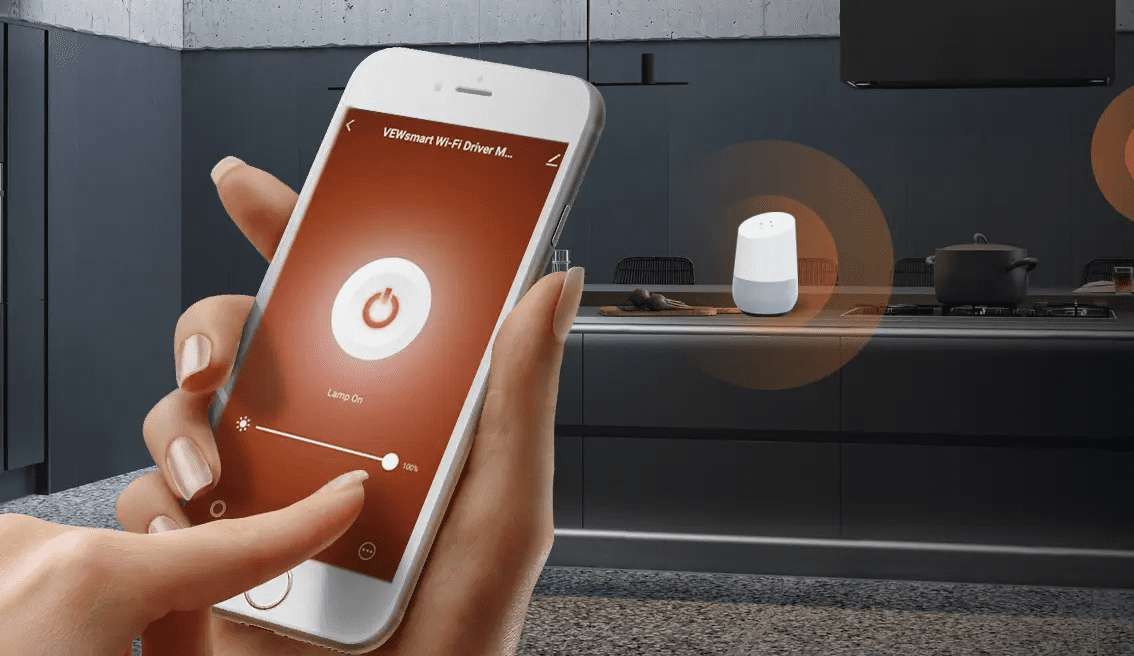
How to connect the VEWsmart WI-FI Driver & Control Module to the VEWsmart App
VEWsmart combined instructions
VEWsmart setup troubleshooting guide

 and then